Project files
- docs20 files
- hardware51 files
- skills14 files
- software135 files
- .gitignore1 KB
- AGENTS.md25 KB
- LICENSE1 KB
- pyproject.toml1 KB
- README.md13 KB
- requirements.txt1 KB
- setup.py1 KB
README.md
Machine-translated by Robotheca from the original in Chinese (opens in a new tab). License: MIT (opens in a new tab).
HomeBot
(opens in a new tab) (opens in a new tab)
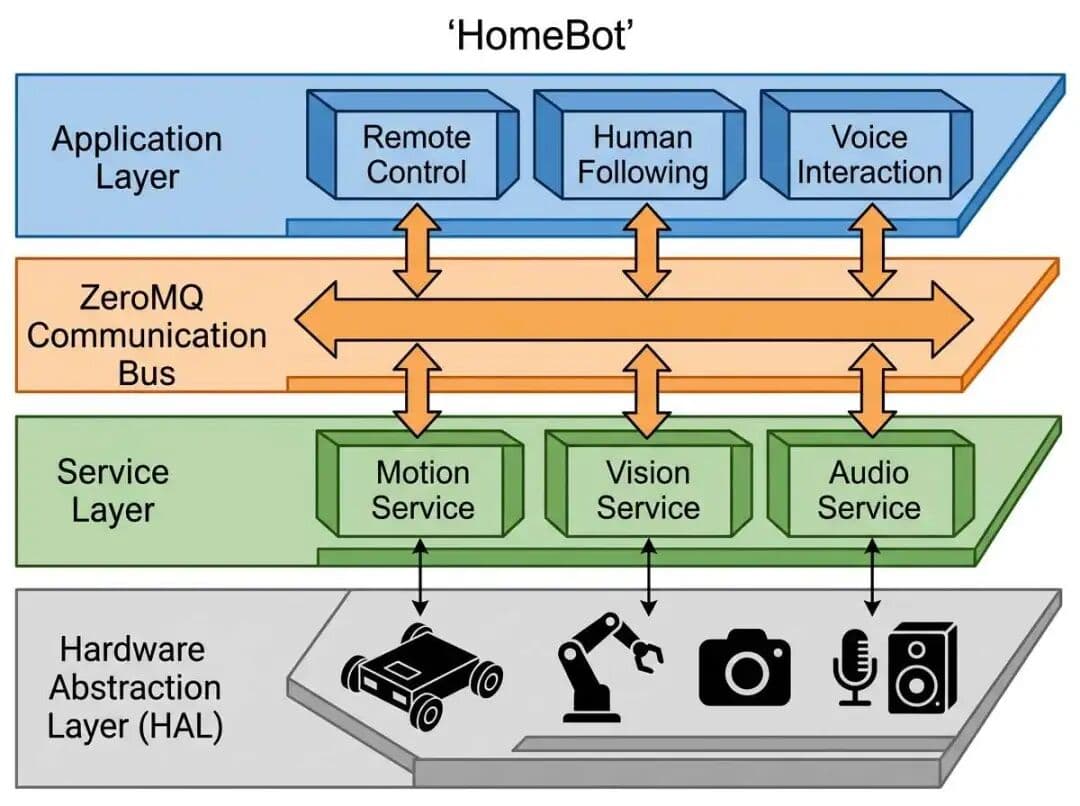
HomeBot is a lightweight robot project designed for home scenarios. It adopts a layered modular architecture and the ZeroMQ communication bus, supporting various applications such as mobile remote control, voice interaction, imitation learning, and human following.
Changelog
Latest Versions
- 2026-08-24 - Universal Message Bus and homebot CLI: Added XPUB-XSUB universal message bus (supports user-defined message extensions), added
homebotcommand-line tool (service management/message debugging/Tab completion/packagable as exe) - 2026-07-09 - LLM Configuration and Robotic Arm WLAN Remote Operation: Added support for switching
LLM_PROVIDERbetween DeepSeek/Volcano Ark/Tongyi Qianwen, added robotic arm WLAN remote operation application - 2026-04-28 - Choco-Arm Hardware and Vision Enhancements: Added SO-101 robotic arm URDF model, AtomS3R-M12 camera support, and face tracking functionality
- 2025-03-28 - HomeBot Plus Release: Added lift platform functionality, supporting overall height adjustment of the robotic arm
- 2025-03-24 - Voice Interaction and Visual Understanding: Added voice interaction system, visual understanding features, and battery status monitoring
Upcoming Releases
- SLAM Navigation Module (in development, see
homebot-navi(opens in a new tab) branch): LiDAR SLAM mapping and localization, occupancy grid maps, A* global path planning, local obstacle avoidance, odometry/depth estimation services, AprilTag perception, map editor and simulation environment, supporting switching between mapping mode and navigation mode
System Architecture
Project Structure
homebot/
├── docs/                      # Documentation (Chinese)
├── hardware/                  # Hardware design files (STEP, STL)
│   └── structure/
├── software/                  # Software code
│   ├── src/
│   │   ├── common/            # Common utilities, message definitions, configuration classes
│   │   ├── configs/           # Runtime configurations (config.py)
│   │   ├── applications/      # Application layer
│   │   │   ├── remote_control/    # Web remote control (including video stream)
│   │   │   ├── gamepad_control/   # Gamepad control (Xbox controller)
│   │   │   ├── human_follow/      # Human following (YOLO + visual servoing)
│   │   │   ├── speech_interaction/ # Speech interaction
│   │   │   └── imitation_learning/ # Imitation learning
│   │   ├── services/          # Service layer
│   │   │   ├── motion_service/    # Chassis control service
│   │   │   │   └── chassis_arbiter/  # Arbiter core
│   │   │   └── vision_service/    # Vision service (image capture and publishing)
│   │   ├── hal/               # Hardware Abstraction Layer (HAL)
│   │   │   ├── camera/        # Camera driver
│   │   │   ├── chassis/       # Chassis driver
│   │   │   ├── gamepad/       # Xbox controller driver
│   │   │   └── ftservo_driver.py  # Feetech servo motor low-level driver
│   │   ├── examples/          # Example code
│   │   └── tests/             # Test code
│   ├── models/                # Machine learning models (e.g., YOLOv8)
│   ├── tools/                 # Helper scripts (device inspection, calibration, model download, etc.)
│   ├── start_system.py        # Cross-platform system launcher
│   ├── start_human_follow.py  # Launch human following
│   └── start_chassis_service.py
├── requirements.txt           # Python dependencies
├── pyproject.toml             # Build system configuration
├── setup.py                   # Package installation configuration
└── README.md                  # Project description
Features
- Pure Python implementation, easily cross-platform (Windows, Linux, Mac, Raspberry Pi)
- ZeroMQ communication bus, low latency, low resource consumption
- Web-based remote control, supports mobile/tablet/PC, real-time video streaming
- Gamepad control, Xbox controller simultaneously controls the chassis and robotic arm
- Human following, vision servo auto-following based on YOLO26
- Emergency stop lock, requires manual reset after triggering for safety
- One-click startup script, automatically checks for port conflicts and starts all services
- Hardware abstraction layer, adaptable to different sensors and actuators
- Layered modular design, easy to extend new functions
Installation
# In the project root directory
python -m pip install -e .
Or install dependencies manually:
pip install -r requirements.txt
Quick Start
Basic Configuration
Robot-related configurations are uniformly stored in software/src/config/configs.py.
Required configurations: chassis and robotic arm serial port settings.
@dataclass
class ArmConfig:
    """Robotic arm configuration"""
    serial_port: str = "/dev/tty.usbmodem5AE60527771"  # Default shared with chassis, can also be configured independently
    baudrate: int = 1000000
    # Remaining configuration omitted

@dataclass
class ChassisConfig:
    """Chassis configuration - read from robot configuration file"""
    # Serial port configuration (Windows: COM3, Linux: /dev/ttyUSB0)
    serial_port: str = "/dev/tty.usbmodem5AE60527771" # Default shared with robotic arm, can also be configured independently
    baudrate: int = 1000000
    # Remaining configuration omitted
For more configuration options, see Configuration Modification Guide.
Device Information Viewer
Quickly view available serial ports, cameras, and microphones in the system to facilitate configuration changes:
cd software
python tools/list_devices.py
Example output:
📟 Serial port: COM15
   Description: USB-SERIAL CH340

📷 Camera index: 0
   Resolution: 1920x1080

🎤 Microphone index: 1
   Name: Microphone (Realtek(R) Audio)
For more tool scripts (robotic arm calibration, model downloading, etc.), see 👉 Tool Script Usage Guide
Robotic Arm Calibration (First Use)
For first-time use or after replacing the robotic arm's servos, zero-point calibration is required:
cd software
python tools/calibrate_arm.py
Follow the prompts to move each joint of the robotic arm to the zero position. After completion, the calibration data will be automatically saved.
👉 For detailed instructions, see the Tool Script Usage Guide
One-click Service Startup
cd software
python start_system.py
This will start three services:
- Chassis Service & Robotic Arm Service (ZeroMQ: tcp://127.0.0.1:5556 & tcp://127.0.0.1:5557)
- Vision Service (Camera PUB: tcp://127.0.0.1:5560)
- Web Control End (Flask: http://0.0.0.0:5000 (opens in a new tab))
During startup, port occupancy will be checked, and prompts will be provided if any ports are occupied.
Control Method 1: Accessing the Web Control Interface
Open a mobile phone or computer browser on the local area network and visit:
http://<robot-ip>:5000
The interface includes:
- Real-time video stream (camera feed)
- Virtual joystick (left side for controlling chassis movement)
- Emergency stop button (red, locks the chassis when triggered)
- Return-to-home button (blue, unlocks the emergency stop)
Control Method 2: Gamepad Control
Use an Xbox gamepad to control both the chassis and the robotic arm simultaneously:
# 1. Start the chassis service
cd software/src
python -m services.motion_service.chassis_service

# 2. Start the arm service
python -m services.motion_service.arm_service

# 3. Start the gamepad control
python -m applications.gamepad_control
Control Mapping:
- Chassis: Left stick (movement/rotation) + LT/RT (translation)
- Arm: Right stick (base/extension) + D-pad (lifting/rotation) + Y/A/B (wrist flip) + RB/LB (gripper)
- System: Back (emergency stop) / Start (reset)
For detailed instructions 👉 Gamepad Control User Guide
Control Method 3: AI Assistant Control (Picoclaw)
Control via the Picoclaw AI assistant using natural language:
"Make the robot move forward 20 centimeters"
"Turn right 90 degrees"
"What does the robot see?"
Picoclaw automatically parses commands and controls the robot, supporting chassis movement, robotic arm control, visual queries, and more.
For details, see 👉 Complete Guide to Controlling HomeBot with Picoclaw
Human Following Function
HomeBot provides real-time human following based on YOLO26, supporting visual servo control to enable the robot to automatically follow the target human.
Technical Features
| Feature | Description |
|---|---|
| Detection Model | YOLO26-nano (~2.4MB) |
| Detection Speed | CPU 38ms/frame, 43% faster than YOLO11 |
| Tracking Algorithm | IoU matching + Kalman filter |
| Control Algorithm | Visual Servoing |
| Control Priority | auto=3 (can be preempted by emergency) |
Quick Experience
After starting the system service, simply click the human-following button on the web page. It takes about 5-10 seconds to start (loading the model).
Operating Modes
- FOLLOWING: Normal following of the target
- SEARCHING: Target lost, spinning in place to search
- IDLE: Idle state
- PAUSED: Paused state
Control Logic
- Horizontal Control: Target on the left side of the screen → turn left, right side → turn right
- Distance Control: Target too small (too far) → move forward, too large (too close) → move backward
- Loss Handling: Rotate to search when briefly lost, stop when completely lost
Configuration Parameters
Edit software/src/configs/config.py:
@dataclass
class HumanFollowConfig:
    model_path: str = "models/yolo26n.pt"
    target_distance: float = 1.0        # Target distance (meters)
    kp_linear: float = 0.001            # Linear velocity P coefficient
    kp_angular: float = 0.003           # Angular velocity P coefficient
    max_linear_speed: float = 0.3       # Maximum linear speed
    max_angular_speed: float = 0.8      # Maximum angular speed
    max_tracking_age: int = 30          # Maximum lost frames
For more details, please refer to the Human Following User Guide.
Web Remote Control Functions
Video Stream Display
- Automatically connects to VisionService to obtain camera footage
- Supports real-time MJPEG streaming playback
- Automatic offline detection, displays offline status
Emergency Stop Mechanism
- Click Emergency Stop → the chassis stops immediately and enters locked state
- During locking:
- Joystick operations are ignored
- The chassis rejects all movement commands
- The button displays "Locked"
- Click Reset → unlock and restore normal control
Status Indicators
- WebSocket Status – Connection status indicator
- Arbitrator Status – Chassis service connection status
- Video Status – LIVE / OFFLINE
- FPS Display – Joystick command transmission frequency
Development Standards
Start Service Modules
# Chassis service
python -m services.motion_service.chassis_service [--port COM3]

# Arm service
python -m services.motion_service.arm_service

# Vision service
python -m services.vision_service [--display]

# Web control end
python -m applications.remote_control [--host 0.0.0.0] [--port 5000]

# Human body following
python -m applications.human_follow [--display]

# Gamepad control
python -m applications.gamepad_control [--controller 0] [--verbose]
Subscribe to Image Stream
from services.vision_service import VisionSubscriber
import cv2

sub = VisionSubscriber("tcp://localhost:5560")
frame_id, frame = sub.read_frame()  # Read a single frame

# Or read continuously
sub.read_loop(callback=process_frame)
Message Format
Chassis control command:
{
    "source": "web",        # Control source: web/voice/auto/emergency/home
    "vx": 0.5,              # Linear velocity X (m/s)
    "vy": 0.0,              # Linear velocity Y (m/s)
    "vz": 0.3,              # Angular velocity Z (rad/s)
    "priority": 1           # Priority: 1=web, 2=voice, 3=auto, 4=emergency
}
Custom Application Development
Extensions
- AI assistant control – Control the robot using natural language via Picoclaw
- Gamepad control – Directly control the robot using an Xbox gamepad; see the Gamepad Control Guide
Possible additions in future iterations:
- MQTT bridge – Remote control via the cloud
- Multi-robot coordination – Distributed task execution
- SLAM navigation – Autonomous mapping and localization
- Voice interaction – Integration with large language models
- Imitation learning – Compatible with the LeRobot framework
Last updated: 2026-07-09
Files by @choco-robot, at commit 7c17ed6, read from GitHub in your browser. Hardware license: MIT; software license: MIT. Robotheca doesn't review code: read it before running it.