Project files
7 KB
Machine-translated by Robotheca from the original in Chinese (opens in a new tab). License: MIT (opens in a new tab).
Tool Script User Guide
HomeBot provides a series of auxiliary tool scripts located in the software/tools/ directory to help users quickly configure, debug, and maintain the robot.
Device Information Viewer Tool
Script: list_devices.py
Used to quickly view available serial ports, cameras, and microphones in the system, helping users confirm device port numbers and modify configurations.
Basic Usage
cd software
python tools/list_devices.py
Features
| Device Type | Description |
|---|---|
| 📟 Serial Port Device | Lists all COM ports, device descriptions, VID/PID information |
| 📷 Camera Device | Lists available camera indices, resolutions, frame rates |
| 🎤 Microphone Device | Lists microphone indices, names, default sampling rates |
Advanced Options
# Test camera (display live preview, press 'q' to exit)
python tools/list_devices.py --test-camera

# Test microphone recording (3 seconds)
python tools/list_devices.py --test-mic

# Test a specific microphone
python tools/list_devices.py --test-mic --mic-index 1 --mic-duration 5
Output Example
============================================================
 📟 Serial Ports
============================================================

   📟 Serial Port: COM15
      Description: USB-SERIAL CH340 (COM15)
      Hardware ID: USB VID:PID=1A86:7523
      VID/PID: 1A86:7523

============================================================
 Configuration Summary
============================================================

📟 Serial Port Configuration (ChassisConfig / ArmConfig):
   Current Configuration: chassis.serial_port = "COM15"
   Current Configuration: arm.serial_port = "COM15"

📷 Camera Configuration (CameraConfig):
   Current Configuration: camera.device_id = 0

🎤 Microphone Configuration (SpeechConfig):
   Current Configuration: speech.mic_index = 1
The tool automatically displays the current configuration values and recommends available devices, making it easy for users to directly modify software/src/configs/config.py.
Robotic Arm Calibration Tool
Script: calibrate_arm.py
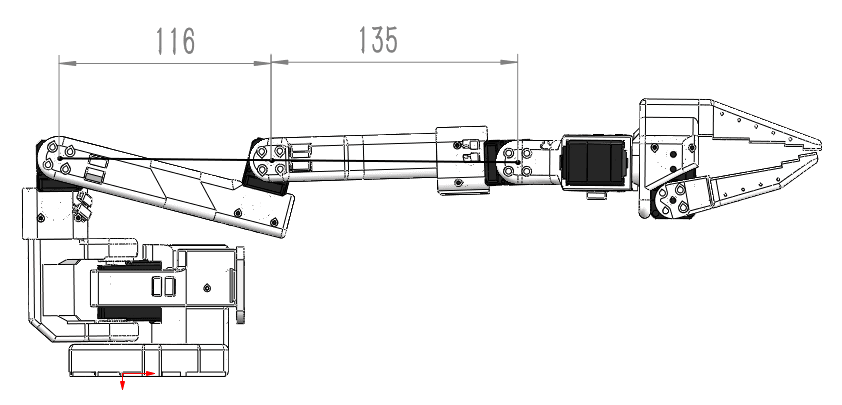
Used to calibrate the zero position of each joint of the robotic arm, setting the current mechanical position as the servo midpoint (2048).
⚠️ Note: Calibration takes effect immediately and is saved to the servo EEPROM. Before calibration, ensure the robotic arm is in the correct mechanical zero position.
Basic Usage
cd software/src
python -m tools.calibrate_arm
Interactive Calibration (Recommended)
Running without parameters will enter the interactive menu:
============================================================
Interactive Robotic Arm Calibration
============================================================================

Joint List:
  1: base (Base rotation)
  2: shoulder (Shoulder joint)
  3: elbow (Elbow joint)
  4: wrist_flex (Wrist flexion/extension)
  5: wrist_roll (Wrist rotation)
  6: gripper (Gripper)
  0: Calibrate all joints
  q: Quit
Quick Calibration
# Quick calibration of all joints (no confirmation required)
python -m tools.calibrate_arm --quick

# Calibrate only specific joints
python -m tools.calibrate_arm --quick --joints 1 2

# View current position only
python -m tools.calibrate_arm --verify

# Specify serial port
python -m tools.calibrate_arm --port COM3 --quick
Calibration Principle
The zero-point calibration principle for Feetech servos:
- Disable servo torque
- Write 128 to register 40; the current position will be set to 2048
- Re-enable torque
- Verify position and set maximum/minimum angle limits
Robotic Arm Debugging Tool
Script: debug_arm.py
Used for quick debugging of the robotic arm, including functions such as one-click torque disable, one-click reset to rest position, and viewing current status.
Basic Usage
cd software/src
python -m tools.debug_arm
Feature Options
# One-click torque disable (allows manual adjustment of arm position)
python -m tools.debug_arm --disable

# One-click reset to rest position
python -m tools.debug_arm --reset

# View current status
python -m tools.debug_arm --status

# Reset with specified serial port and speed parameters
python -m tools.debug_arm --reset --port COM3 --speed 600 --acc 30
Interactive Menu
Running without arguments will display the menu:
============================================================
Robotic Arm Debugging Tool - Interactive Menu
============================================================================

Function Options:
  1. One-click disable torque (can manually adjust position)
  2. One-click reset robotic arm
  3. View current status
  4. Enable torque
  q. Exit
Reset Position
During reset, the robotic arm moves to the rest_position defined in the configuration file:
# software/src/configs/config.py
rest_position = {
    "base": -90,        # J1: Base rotation
    "shoulder": 0,      # J2: Shoulder joint
    "elbow": 150,       # J3: Elbow joint
    "wrist_flex": 30,   # J4: Wrist flexion/extension
    "wrist_roll": -90,  # J5: Wrist rotation
    "gripper": 45,      # J6: Gripper (half-open)
}
Model Download Tool
Downloading YOLO Models
Script: download_models.py
Downloads the YOLO detection model required for human following.
cd software
python tools/download_models.py
By default, the models are downloaded to the software/models/ directory.
Convert the downloaded yolo26n.pt to ONNX format:
python tools/export_onnx.py models/yolo26n.pt
Downloading Speech Models
Script: download_speech_models.py
Downloads the ASR and wake-word models required for voice interaction.
cd software
python tools/download_speech_models.py
Models are downloaded to the software/models/ directory by default.
Downloading from Cloud Storage
If the download script is not working, you can manually download the model files using the following link:
Link: https://pan.baidu.com/s/19oHB9KpET_LAxAXwsFhNVg (opens in a new tab) Extraction code: uuxs
yolo26n.onnx - Human detection model
Place it directly in the models directory
Model Check Tool
Script: check_models.py
Checks whether all required model files have been downloaded.
cd software
python tools/check_models.py
Example output:
Checking model files...

✅ YOLO model: models/yolo26n.onnx
❌ Speech model: models/wakeup/encoder.onnx (missing)

Some models are missing. Please run:
  python tools/download_models.py
  python tools/download_speech_models.py
Quick Reference
| Tool | Purpose | Common Command |
|---|---|---|
list_devices.py | View device information | python tools/list_devices.py |
calibrate_arm.py | Calibrate robotic arm zero point | python -m tools.calibrate_arm --quick |
debug_arm.py | Debug robotic arm | python -m tools.debug_arm --reset |
check_models.py | Check model files | python tools/check_models.py |
download_models.py | Download YOLO models | python tools/download_models.py |
download_speech_models.py | Download speech models | python tools/download_speech_models.py |
Troubleshooting
Serial Port Permission Issues (Linux)
# Add user to the dialout group
sudo usermod -a -G dialout $USER
# Takes effect after logging in again
Camera cannot be opened
- Test using
list_devices.py --test-camera - Check if another program is using the camera
- Try changing the camera index (modify
camera.device_id)
Microphone Silent
- Use
list_devices.py --test-micto test recording - Check system default recording device settings
- Try changing the microphone index (modify
speech.mic_index)
Last updated: 2026-03-22
Files by @choco-robot, at commit 7c17ed6, read from GitHub in your browser. Hardware license: MIT; software license: MIT. Robotheca doesn't review code: read it before running it.