Project files
9 KB
Machine-translated by Robotheca from the original in Chinese (opens in a new tab). License: MIT (opens in a new tab).
07 — API Key Acquisition and Configuration Guide
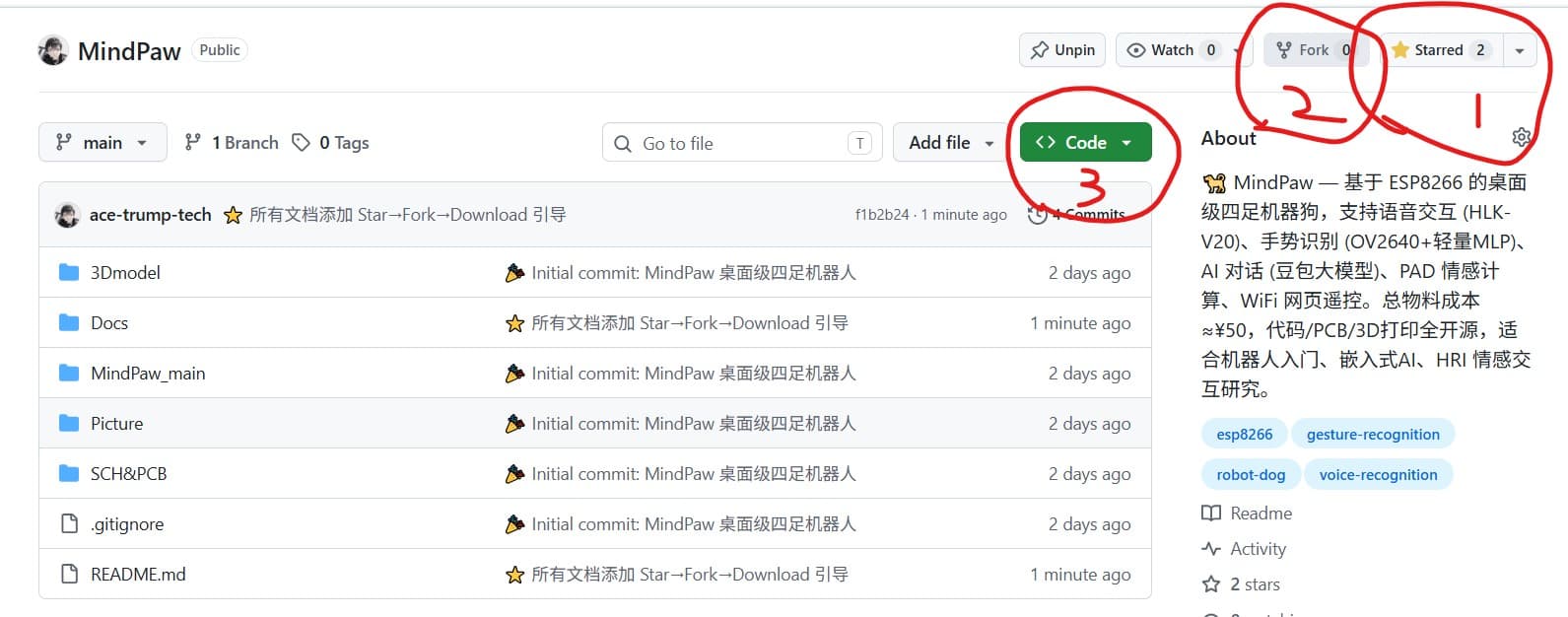
⭐ Before using this tutorial, please support this open-source project:
- Star ⭐ — Click the ⭐ Star in the top-right corner of the GitHub repository to bookmark this project for easy future access
- Fork 🍴 — Click Fork to copy the project to your GitHub account, allowing you to modify it freely
- Download 📥 — Click the green Code button → Download ZIP to download it locally and start replicating
📸 Operation Diagram:
MindPaw uses two cloud-based APIs and an offline voice module, all of which require application or configuration before use. This guide will walk you through all the necessary configurations step by step.
1. Sensors.AI Weather API (Weather Query)
1.1 Register an Account
- Open the Seniverse Weather official website (opens in a new tab)
- Click Sign Up in the top-right corner
- Register using an email address or GitHub account
- Log in after registration
1.2 Obtaining an API Key
- After logging in, go to the console and click Product Management on the left side.
- Find Weather Data API and click Free Version.
- The free version allows up to 1,000 calls per day, which is more than enough for personal robots.
- After successful creation, you will see a key similar to the following on the page:
Your API Key: S_xxxxxxxxxxxxxxxxxxxxxxxxxxxxx
- Click Copy and save it to a notepad for future use.
1.3 Location in the Code
The obtained API Key does not need to be hardcoded in the code; it can be configured via the web page (see Section 4).
// main.cpp line 65 — API Key defaults to empty, filled in via the web page
String weatherapi = ""; // Filled in via the web page after startup
2. Volcano Engine Ark API (AI Conversation)
MindPaw calls the Doubao Large Model through the Ark platform of Volcano Engine, and the interface is fully compatible with the OpenAI format.
2.1 Register an Account
- Visit the Volcano Engine official website (opens in a new tab)
- Click Sign Up in the top-right corner (supports phone number / email)
- Complete real-name authentication after registration (required for AI services)
- Log in to the console
2.2 Creating an Inference Access Point
- Enter 方舟 in the search box at the top of the console to access the 方舟平台.
- Select Inference Access Points from the left-hand menu.
- Click Create Access Point and fill in the following:
| Field | Content |
|---|---|
| Name | Any name, e.g., MindPaw |
| Model Selection | Recommended: Doubao-pro-32k (high cost-performance) or Doubao-lite-32k (faster and cheaper) |
| Billing Method | Pay-as-you-go (new users have a free quota) |
- After creation, you will receive an Endpoint ID, formatted as:
ep-2025xxxx-xxxxx-xxxxx-xxxx
- Copy this ID and save it for future use
2.3 Obtaining an API Key
- In the left menu of the Ark platform, click API Key Management.
- Click Create API Key.
- After entering a name, you will receive:
AK: xxxxxxxx-xxxx-xxxx-xxxx-xxxxxxxxxxxx
- Click Show Full Key and copy it (the full content will not be displayed again after closing the page).
- Save the API Key and Endpoint ID to a notepad.
2.4 (Optional) Recharge
New users typically have tens of thousands of free Token quotas, which are sufficient for a long time. If you need to recharge later:
- Ark Platform → Billing Center
- Recharge ¥10 can last a very long time (Doubao-pro is about ¥0.8 per million tokens)
2.5 Location in the Code
// doubao_config.h Line 10 — API endpoint (pre-filled, no need to modify)
#define DOUBAO_BASE_URL   "https://ark.cn-beijing.volces.com"
#define DOUBAO_API_PATH   "/api/v3/chat/completions"
The API Key and Endpoint ID are configured via the web interface and are not hardcoded in the code.
3. HLK-V20 Voice Module Configuration
HLK-V20 (also known as SU-03T) is an offline voice recognition module that can recognize voice commands without an internet connection.
3.1 Downloading the Configuration Tool
- Search for "SU-03T Configuration Tool" or "HLK-V20 Host Computer" on Baidu.
- Alternatively, you can find the download link on the official Taobao store page of Hi-Link.
- The tool is a Windows software, approximately 200MB in size.
3.2 Connecting the Module to a Computer
Use a USB-TTL module for connection:
| USB-TTL | HLK-V20 |
|---|---|
| TX | RX |
| RX | TX |
| GND | GND |
| 3.3V | VCC |
Note:
- Do not connect 5V; the HLK-V20 is powered by 3.3V
- RX/TX must be cross-connected (TX→RX, RX→TX)
3.3 Configuring Voice Commands
Open the configuration tool and follow these steps:
Step 1: Set Basic Parameters
| Parameter | Recommended Value |
|---|---|
| Baud Rate | 9600 |
| Wake-up Method | Key trigger / Wake-up word trigger (recommended wake-up word) |
| Wake-up Word | e.g., "小狗小狗" (3-5 characters) |
Step 2: Add Commands
Click Add Command. Each command consists of:
- Recognition Word: What the user says (e.g., "前进")
- Output: The string sent via serial port after recognition (e.g.,
CMD1)
Create 22 commands based on the following table:
| # | Recognition Word | Output | Function |
|---|---|---|---|
| 1 | 前进 | CMD1 | Move forward |
| 2 | 后退 | CMD2 | Move backward |
| 3 | 左转 | CMD3 | Turn left |
| 4 | 右转 | CMD4 | Turn right |
| 5 | 停下 | CMD5 | Stop |
| 6 | 坐下 | CMD6 | Sit down |
| 7 | 趴下 | CMD7 | Lie down |
| 8 | 开心 | CMD8 | Happy expression |
| 9 | 生气 | CMD9 | Angry expression |
| 10 | 难受 | CMD10 | Sad expression |
| 11 | 好奇 | CMD11 | Curious expression |
| 12 | 喜欢 | CMD12 | Affectionate expression |
| 13 | 睡觉 | CMD13 | Sleeping posture |
| 14 | 自由模式 | CMD14 | Toggle free mode |
| 15 | 抬左手 | CMD15 | Raise left hand |
| 16 | 抬右手 | CMD16 | Raise right hand |
| 17 | 现在时间 | CMD17 | Display time |
| 18 | 今天天气 | CMD18 | Display weather |
| 19 | 显示标志 | CMD19 | Display logo |
| 20 | 你好 | CMD20 | Greet |
| 21 | 再见 | CMD21 | Say goodbye |
| 22 | (不配置) | CMD22 | Reserved |
Step 3: Flash to Module
- Click Flash or Generate Firmware and Download
- Wait for flashing to complete (approximately 10-30 seconds)
- Disconnect the USB-TTL after flashing is done
3.4 Verification
After flashing, connect the module using a USB-TTL adapter:
- Open a serial terminal (baud rate 9600)
- Speak to the module; the serial output should display corresponding strings such as
CMD1,CMD2, etc. - If there is no response, check whether the microphone is functioning properly and whether the recognition words are spoken clearly
4. Configuring on the Robotic Dog
4.1 Connecting to WiFi
- Power on the robotic dog.
- Use your phone/computer to search for the WiFi hotspot MindPaw.
- Enter the password
mindpaw1234. - After successful connection, open
http://192.168.4.1in your browser.
4.2 Configuring the Weather API
- On the console page, click Online Features → Settings.
- Locate the Weather API Key input box.
- Paste the API Key copied from 心知天气 (XinZhi Weather).
- Enter the city name (e.g.,
Shanghai,Beijing). - Click Save and Connect.
- Return to the Online Features page and click Weather to verify normal display.
4.3 Configuring the AI Agent
- Open
http://192.168.4.1/aiconfig.htmlin your browser. - Paste the Volcano Engine API Key into the API Key input field.
- Paste the Endpoint ID into the Inference Endpoint ID input field.
- Click Save Configuration.
- After the success prompt appears, open
http://192.168.4.1/aichat.html. - Enter a message for testing; the robotic dog should respond with actions, expressions, and melodies.
4.4 Verifying HLK-V20
After connecting the HLK-V20 module, no additional configuration is required—it is ready to use once powered on:
- Say the wake-up word to the module (e.g., "Xiaogou Xiaogou").
- After hearing the module's prompt tone, speak the command (e.g., "Move forward").
- Observe whether the robotic dog performs the corresponding action.
- If there is no response, check the wiring (see 05_Assembly_Guide.md).
Frequently Asked Questions
Weather API shows "Need NET"
- Is the robotic dog connected to WiFi? (The OLED displays AP mode, requiring an external WiFi connection)
- Re-enter and save the WiFi information on the Settings page
AI Chat Prompt "AI Not Configured"
- Check if aiconfig.html was saved successfully
- Check if the API Key and Endpoint ID were copied completely (no extra spaces)
- Has the Volcano Engine account completed real-name authentication?
HLK-V20 No Response
- Is the wiring correct? Are RX/TX crossed?
- Is the baud rate set to 9600?
- Has the firmware in the module been successfully flashed? (Test the output separately using a USB-TTL adapter)
- When speaking to the module, do not stand too far away (recommended distance: 0.5–1 meter)
Inconsistency between voice commands and actual execution
- Is the correspondence between the recognition words and output strings of the HLK-V20 correct?
- Check whether the
DEFAULT_MAPPINGtable inhlkv20.cppmatches your output strings
What should I do if the secret key is leaked?
- 心知天气 (Sensoro Weather): Log in to the console → Product Management → Reset Key
- 火山引擎 (Volcano Engine): Log in to the Ark platform → API Key Management → Delete old Key → Create new Key
- WiFi Password: Modify the
passwordinmain.cppand recompile and reflash
Files by @ace-trump-tech, at commit 21c5492, read from GitHub in your browser. Hardware license: MIT; software license: MIT. Robotheca doesn't review code: read it before running it.