Software
Walk These Ways
By Improbable-AI @MIT, from github.com/Improbable-AI/walk-these-ways (opens in a new tab)
- Humanoids and robot learning
- Framework
- MIT
Research code that trains and deploys reinforcement-learning locomotion policies for the Unitree Go1 quadruped, using Isaac Gym simulation and multiplicity-of-behavior tuning.
- Closed core. It needs closed parts: NVIDIA Isaac Gym Preview 4.
- Stale. No commit in 12 months: the newest is from 17 Jun 2024.
Facts
- GitHub stars
- 1,470read on 6 Nov 2026
- Last update
- 17 Jun 2024Newest commit on master
- Maintenance
- Staleno commit in 12 months
- Difficulty
- Advanced
- Hardware it needs, as the project states it
- Isaac Gym requires an NVIDIA GPU; about 10GB of VRAM is recommended, and training with the default configuration needs about 12GB of GPU memory. Real-robot deployment needs the Unitree Go1 Edu robot, connected by ethernet.
Checked on GitHub on 6 Nov 2026.
Licenses
- Code
- MIT (opens in a new tab)
Read by Robotheca from LICENSE (opens in a new tab) (MIT) at commit 0e7236b (opens in a new tab), on 4 Nov 2026.
- Commercial use
- Unknown
It needs closed parts under their own terms: read them before any commercial use.
One part it needs is closed
- Needs NVIDIA Isaac Gym Preview 4: Training and simulated evaluation need Isaac Gym Preview 4, a closed NVIDIA download (README).
Overview
What it does: Robotheca's summary
- Trains Go1 walking controllers with PPO, Isaac Gym, domain randomization and multiplicity of behavior.
- Evaluates a pretrained policy in simulation, running the robot forward at 3 m/s for 5 seconds and plotting velocity and joint angles.
- Deploys learned policies on the real Go1 Edu robot via unitree_legged_sdk, in low-level control mode.
- Includes a docker-based deployment installer and a controller started with the robot's remote control sequence.
- Lets users swap in a custom trained model for simulation and deployment.
- Includes a safety layer that cuts motor power if joint torque gets too high; the authors say the robot should be hung up during testing.
Written by Robotheca from the project's README (opens in a new tab) at commit 0e7236b, not by its creator.
The README
The creator's own README, copied as written: README.md by Improbable-AI @MIT, at commit 0e7236b, under MIT (opens in a new tab). The original on GitHub (opens in a new tab).
Read the README here
Go1 Sim-to-Real Locomotion Starter Kit
Table of contents
Overview
This repository provides an implementation of the paper:
Gabriel B. Margolis (opens in a new tab) and Pulkit Agrawal (opens in a new tab)
<em>Conference on Robot Learning</em>, 2022
paper (opens in a new tab) / project page (opens in a new tab)
If you use this repository in your work, consider citing:
@article{margolis2022walktheseways,
    title={Walk These Ways: Tuning Robot Control for Generalization with Multiplicity of Behavior},
    author={Margolis, Gabriel B and Agrawal, Pulkit},
    journal={Conference on Robot Learning},
    year={2022}
}
This environment builds on the legged gym environment (opens in a new tab) by Nikita Rudin, Robotic Systems Lab, ETH Zurich (Paper: https://arxiv.org/abs/2109.11978 (opens in a new tab)) and the Isaac Gym simulator from NVIDIA (Paper: https://arxiv.org/abs/2108.10470 (opens in a new tab)). Training code builds on the rsl_rl (opens in a new tab) repository, also by Nikita Rudin, Robotic Systems Lab, ETH Zurich. All redistributed code retains its original license (opens in a new tab).
Our initial release provides the following features:
- Train reinforcement learning policies for the Go1 robot using PPO, IsaacGym, Domain Randomization, and Multiplicity of Behavior (MoB).
- Evaluate a pretrained MoB policy in simulation.
- Deploy learned policies on the Go1 using the
unitree_legged_sdk.
System Requirements
Simulated Training and Evaluation: Isaac Gym requires an NVIDIA GPU. To train in the default configuration, we recommend a GPU with at least 10GB of VRAM. The code can run on a smaller GPU if you decrease the number of parallel environments (Cfg.env.num_envs). However, training will be slower with fewer environments.
Hardware Deployment: We provide deployment code for the Unitree Go1 Edu robot. This relatively low-cost, commercially available quadruped can be purchased here: https://shop.unitree.com/ (opens in a new tab). You will need the Edu version of the robot to run and customize your locomotion controller.
Training a Model
Installation
Install pytorch 1.10 with cuda-11.3:
pip3 install torch==1.10.0+cu113 torchvision==0.11.1+cu113 torchaudio==0.10.0+cu113 -f https://download.pytorch.org/whl/cu113/torch_stable.html
Install Isaac Gym
-
Download and install Isaac Gym Preview 4 from https://developer.nvidia.com/isaac-gym (opens in a new tab)
-
unzip the file via:
tar -xf IsaacGym_Preview_4_Package.tar.gz -
now install the python package
cd isaacgym/python && pip install -e . -
Verify the installation by try running an example
python examples/1080_balls_of_solitude.py -
For troubleshooting check docs
isaacgym/docs/index.html
Install the go1_gym package
In this repository, run pip install -e .
Verifying the Installation
If everything is installed correctly, you should be able to run the test script with:
python scripts/test.py
The script should print Simulating step {i}.
The GUI is off by default. To turn it on, set headless=False in test.py's main function call.
Environment and Model Configuration
CODE STRUCTURE The main environment for simulating a legged robot is in legged_robot.py (opens in a new tab). The default configuration parameters including reward weightings are defined in legged_robot_config.py::Cfg (opens in a new tab).
There are three scripts in the scripts (opens in a new tab) directory:
scripts
├── __init__.py
├── play.py
├── test.py
└── train.py
You can run the test.py script to verify your environment setup. If it runs then you have installed the gym
environments correctly. To train an agent, run train.py. To evaluate a pretrained agent, run play.py. We provie a
pretrained agent checkpoint in the ./runs/pretrain-v0 (opens in a new tab) directory.
Training and Logging
To train the Go1 controller from Walk these Ways (opens in a new tab), run:
python scripts/train.py
After initializing the simulator, the script will print out a list of metrics every ten training iterations.
Training with the default configuration requires about 12GB of GPU memory. If you have less memory available, you can
still train by reducing the number of parallel environments used in simulation (the default is Cfg.env.num_envs = 4000).
To visualize training progress, first start the ml_dash frontend app:
python -m ml_dash.app
then start the ml_dash backend server by running this command in the parent directory of the runs folder:
python -m ml_dash.server .
Finally, use a web browser to go to the app IP (defaults to localhost:3001)
and create a new profile with the credentials:
Username: runs
API: [server IP] (defaults to localhost:8081)
Access Token: [blank]
Now, clicking on the profile should yield a dashboard interface visualizing the training runs.
Analyzing the Policy
To evaluate the most recently trained model, run:
python scripts/play.py
The robot is commanded to run forward at 3m/s for 5 seconds. After completing the simulation, the script plots the robot's velocity and joint angles.
The GUI is on by default.
If it does not appear, and you're working in docker, make sure you haven't forgotten to run bash docker/visualize_access.bash.
Deploying a Model
Safety Recommendations
Users are advised to follow Unitree's recommendations for safety while using the Go1 in low-level control mode.
- This means hanging up the robot and keeping it away from people and obstacles.
- In practice, the main safety consideration we've found important has been not plug anything into the robot's back (ethernet cable, USB) during the initial calibration or when testing a new policy because it can hurt the robot in case of a fall.
- Our code implements the safety layer from Unitree's
unitree_legged_sdkwith PowerProtect level 9. This will cut off power to the motors if the joint torque is too high (could happen sometimes during fast running) - This is research code; use at your own risk; we do not take responsibility for any damage.
Installing the Deployment Utility
The first step is to connect your development machine to the robot using ethernet. You should ping the robot to verify the connection: ping 192.168.123.15 should return x packets transmitted, x received, 0% packet loss.
Once you have confirmed the robot is connected, run the following command on your computer to transfer files to the robot. The first time you run it, the script will download and transfer the zipped docker image for development on the robot (deployment_image.tar). This file is quite large (3.5GB), but it only needs to be downloaded and transferred once.
cd go1_gym_deploy/scripts && ./send_to_unitree.sh
Next, you will log onto the robot's onboard computer and install the docker environment. To enter the onboard computer, the command is:
ssh unitree@192.168.123.15
Now, run the following commands on the robot's onboard computer:
chmod +x installer/install_deployment_code.sh
cd ~/go1_gym/go1_gym_deploy/scripts
sudo ../installer/install_deployment_code.sh
The installer will automatically unzip and install the docker image containing the deployment environment.
Running the Controller
Place the robot into damping mode. The control sequence is: [L2+A], [L2+B], [L1+L2+START]. After this, the robot should sit on the ground and the joints should move freely.
Now, ssh to unitree@192.168.123.15 and run the following two commands to start the controller. This will operate the robot in low-level control mode. Make sure your Go1 is hung up.
First:
cd ~/go1_gym/go1_gym_deploy/autostart
./start_unitree_sdk.sh
Second:
cd ~/go1_gym/go1_gym_deploy/docker
sudo make autostart
The robot will wait for you to press [R2], then calibrate, then wait for a second press of [R2] before running the control loop.
The RC Mapping
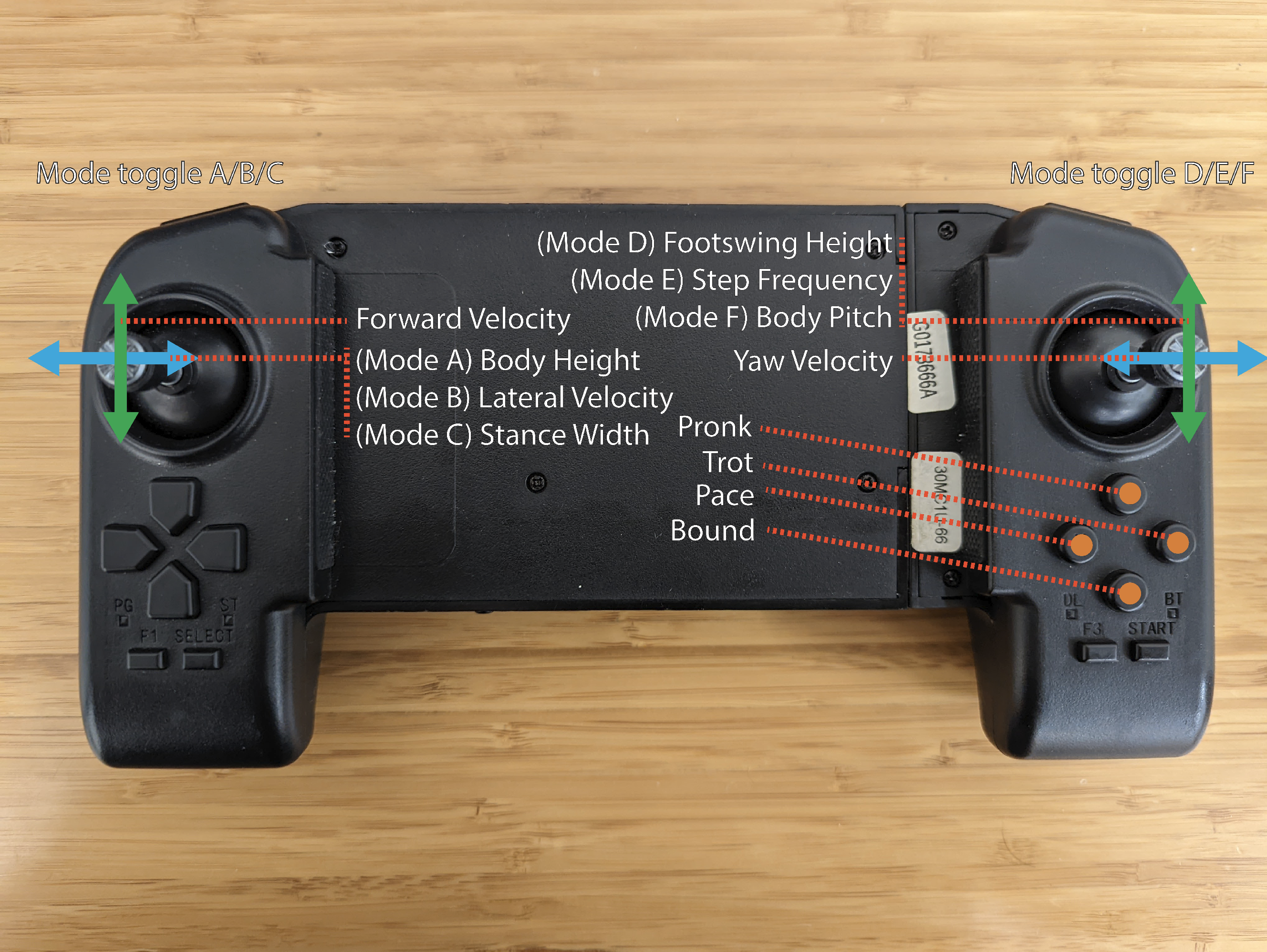 The RC mapping is depicted above.
Deploying a Custom Model
After training a custom model, it will be saved in the runs folder (https://github.com/Improbable-AI/walk-these-ways/tree/master/runs/ (opens in a new tab)). Note the relative location of your custom model of the train folder (for the default policy), it's gait-conditioned-agility/pretrain-v0/train. We'll denote this as $PDIR.
To play the custom model in simulation first, replace the line https://github.com/Improbable-AI/walk-these-ways/blob/master/scripts/play.py#L97 (opens in a new tab) with label = "$PDIR".
To deploy on the robot, replace the line https://github.com/Improbable-AI/walk-these-ways/blob/master/go1_gym_deploy/scripts/deploy_policy.py#L73 (opens in a new tab) with label = "$PDIR". Then re-run the send_to_unitree.sh script to update the files on the robot.
Logging and Debugging
Coming soon
Analyzing Real-world Performance
Coming soon
Debugging Common Errors
| Bug | Solution | First report |
|---|---|---|
| Out of disk space | If you run out of disk space during cd ~/go1_gym/go1_gym_deploy/installer && ./install_deployment_code.sh consider changing the script to use 192.168.123.13 instead (at least in my Go1 Edu with 3 Jetson nano, I only had the required disk space to copy the tar and extract the image in only 192.168.123.13). Alternatively, consider deploying on an external PC. | https://github.com/Improbable-AI/walk-these-ways/issues/7 (opens in a new tab) |
lcm_position syntax error | When deploying with sudo ./start_unitree_sdk.sh on an external PC/NUC, if you get the following error: ./lcm_position: 1: Syntax error: word unexpected (expecting ")"), It is likely because the ./lcm_position has been compiled for ARM aarch64 (to run on the jetson), please recompile it for your architecture(external PC/ NUC) using https://github.com/Improbable-AI/unitree_legged_sdk (opens in a new tab). | https://github.com/Improbable-AI/walk-these-ways/issues/7 (opens in a new tab) |
Files and versions
- Repository on GitHubgithub.com/Improbable-AI/walk-these-ways (opens in a new tab)
- The version Robotheca read0e7236b (opens in a new tab)
- Latest releaseNone published on GitHub
Robotheca never hosts the code: each link goes to the creator's own page.
Use it
How to install it, in the creator's words: The project's website (opens in a new tab)
Robotheca doesn't review code. Read it before running it.
Robotheca lists software as a reference: nothing is hosted or run here, and every fact links to where it was read.